Compatible platforms

MetaTrader 4

MetaTrader 5
Supports all timeframes
Works on all currency pairs
What is Market Trend Scanner?
Market Trend Scanner is an indicator that helps you instantly uncover trend direction across multiple currency pairs without manual analysis. By combining 23 trusted technical indicators into one clear, actionable dashboard, it delivers reliable trend signals you can use right away to plan your trades with confidence. This powerful indicator turns complex data into simple trend insights so you can trade smarter and faster.
How Market Trend Scanner work?
- Step 1: Calculate values of 23 selected & trusted technical indicators (Oscillator & Moving Average indicators)
- Step 2: Analyze all indicators using best practices to find out component trend
- Step 3: Combine all component signals using Safe Calculation method
- Step 4: Provide final trustable signals for traders
Why Market Trend Scanner work?
- All indicators used to analyze are popular technical indicators that traders use and trust
- Signals are based on best practices that used and tested for a long time
- Signal from multiple indicators in difference types combined is always much more trustable than just 1 or 2 indicators
- Safe Calculation method is a smart that can use to rating final signals effectively
Who should use Market Trend Scanner?
This indicator is ideal for traders of all experience levels. Whether you are a beginner looking to learn trend analysis or an experienced trader seeking to enhance your strategy, the Market Trend Scanner can provide valuable insights.
- If you are a fundamental trader, this indicator is totally useless. It can't help you. Please keep searching for other useful indicators.
- If you are a technical trader who believes on data, history and indicators, you have to own this indicator. Trust me, bro!
- If you are a new trader, this indicator is very strong and simple to use. No setup required. Using selected and trusted indicators. Using best practices...
- If you are an experienced trader, this indicator still help. Are you able to monitor and combine many indicator signals at the same time? Do you have a good method to rating analyzed signals? Let this indicator saves your effort and helps you build more profit strategies.
Market Trend Scanner features
Ready to get started?
Let's take your trading to the next level.
Download Market Trend Scanner
Lifetime access and unlimited updates included.
How to use Market Trend Scanner
1. Overview
Main analyzed data
- Safe Score: Trend score calculated by Safe Algorithm
- Safe Rating: Final signal by using Safe Algorithm. It can be Neutral, Buy, Strong Buy, Sell, Strong Sell
- Oscillator Rating (OS Rating) : Combination signal of oscillator indicators
- Moving Average Rating (MA Rating): Combination signal of moving average indicators
- Indicator Signals: Signal of component indicators
The way to use these analyzed data
- When Safe Rating is Neutral → No clearly trend. Don't be hurry! Keep monitoring.
- When Safe Rating turns from Neutral to Buy/Strong Buy → It's bullish now. Consider to Buy.
- When Safe Rating turns from Neutral to Sell/Strong Sell → It's bearish now. Consider to Sell.
- If you want to enter a position earlier for better price but less reliable → Follow MA Rating
- If you want to trade on Overbought/Oversold events → Follow OS Rating
- If you are an experienced trader who want to build complex strategies → More details provided in Safe Score & Indicator Signals
2. Install Market Trend Scanner
Install Demo version
-
Step 1: Download indicator
Click Download Demo button to download Demo version. You will receier one of these 2 file:- Market Trend Scanner MT5 Demo.ex5
- Market Trend Scanner MT4 Demo.ex4
-
Step 2: Copy indicator to Indicators folder
- Open MetaTrader terminal
- Go to File → Open Data Folder
- Navigate to: MQL5/Indicators (MQL4/Indicators if you use MT4 version)
- Copy the indicator you downloaded above into Indicators folder
-
Step 3. Add indicator to chart (any chart is ok)
- Back to MetaTrader terminal
- In navigator, right click on Indicators
- Click Refresh to show new indicators
- Double-click on Market Trend Scanner in the indicator list to install
Install Full version
- Step 1: Purchase full version from MQL Market. If you don't know how to do it, follow this instructions.
- Step 2: Add indicator to chart (any chart is ok)
- Go to MetaTrader terminal
- Open Indicators → Market
- Double-click on Market Trend Scanner in the indicator list to install
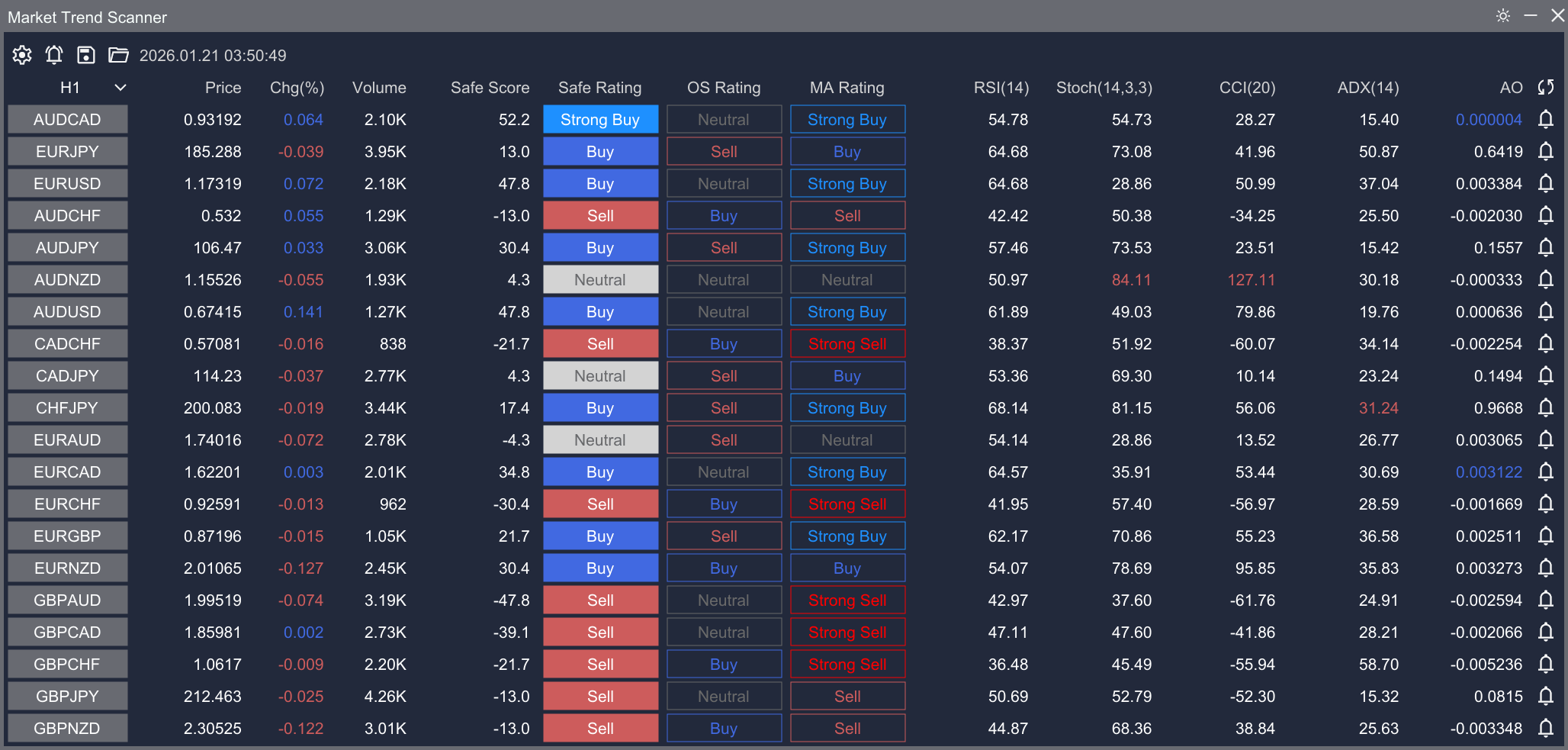
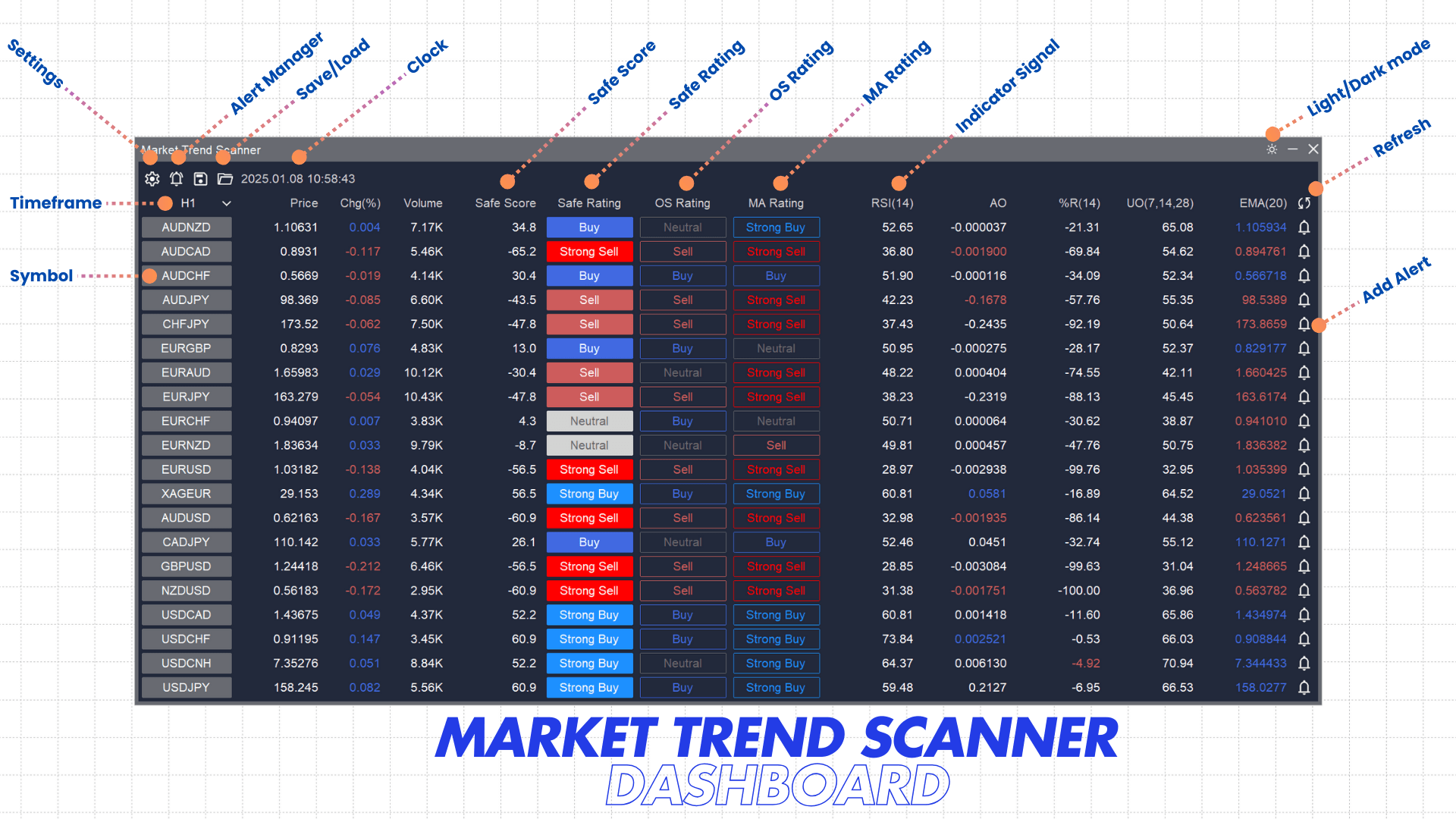
No init setup is required. When the indicator loaded successfully, you will see a dashboard looks like this available on chart:
3. Understand Market Trend Scanner dashboard
By default, it loads all symbols (in your watch list) of current chart timeframe, analyze trend and show on the dashboard. You can setup your preferred symbols on Settings later. However, please spend some time to understand the dashboard first.
- The left column is list of monitored symbols
- The top row is is heading row, it's list of information for each symbol
- In the center is dashboard is analysis information. Values in number and signals in text. Colors present the Buy/Sell suggestion. Each row is information of a timeframe and it includes:
- Price change in percent
- Volume
- Safe Score calculated by Safe Algorithm. Value is between -100 and 100. 100 is supper strong buy signal and -100 is supper strong sell signal.
- Safe Rating is the Final Rating calculated by Safe Algorithm. Value can be Strong Buy, Buy, Neutral, Sell, Strong Sell.
- OS Rating is the rating calculated from Oscillator indicators. Value can be Strong Buy, Buy, Neutral, Sell, Strong Sell.
- MA Rating is the rating calculated from Moving Average indicators. Value can be Strong Buy, Buy, Neutral, Sell, Strong Sell.
- Values of up to 10 component indicators with the colors to show the buy/sell signal for that single indicator. White is Neutral, Red is Sell, Blue is Buy.
- Click on the timeframe list on left top corner to switch to the timeframe you would like to analyze trend
- Click on the symbol name at the beginning of row to open chart in that symbol
- Click on the Refresh icon at the end of heading row to instance refresh data if you want
- Click on alert icon at the end of row to add alert for that symbol
- The first row on top is dashboard controls:
- Gear icon control opens Settings dialog
- Alert icon control opens Alert Manager dialog
- Save icon control opens Save Settings dialog
- File Open icon control opens Saved Setting dialog
- The Clock next to control shows time of trading server or local time. Click on it to switch between these time modes
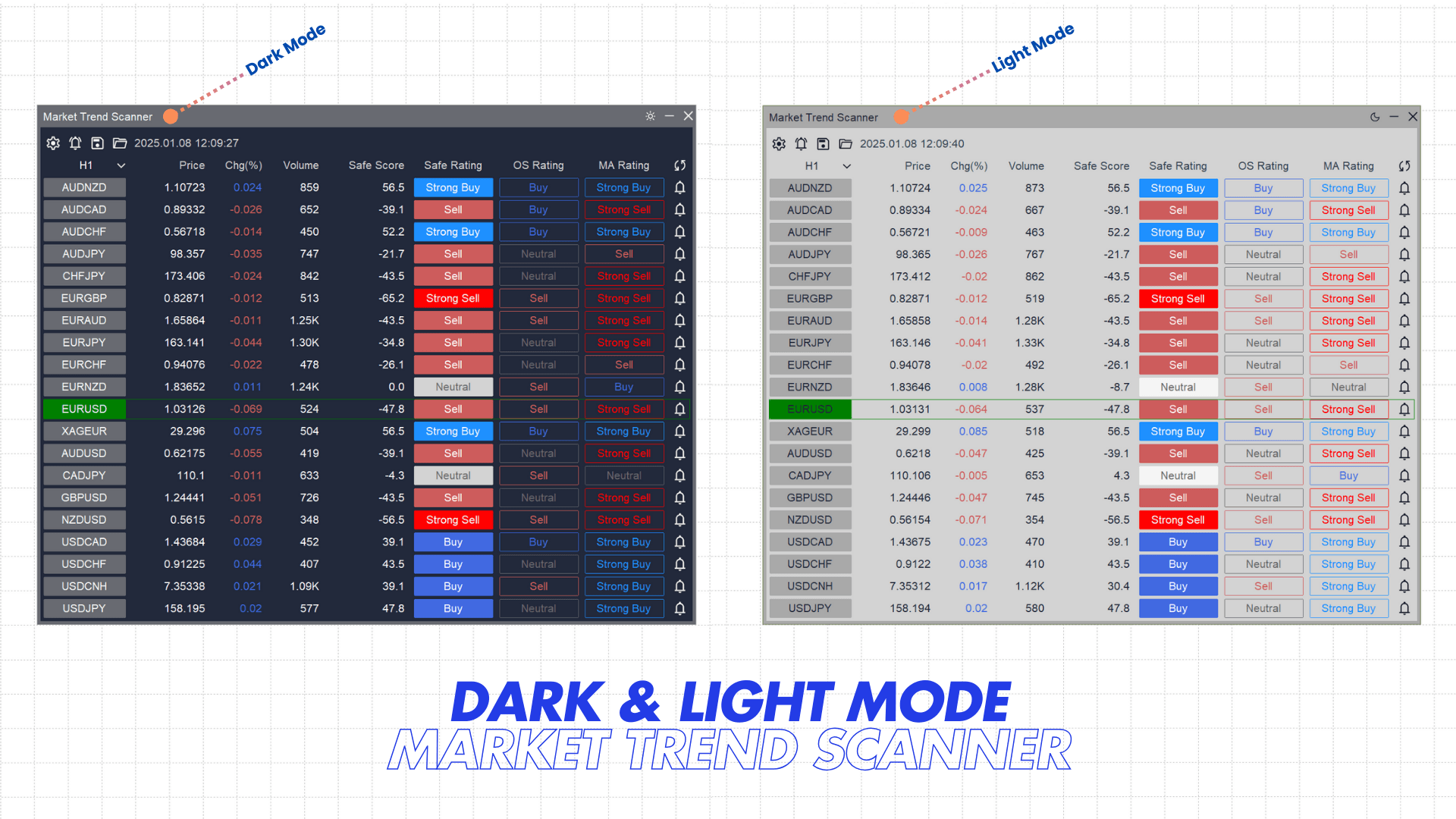
- The Light/Dark mode icon on the top-right corner to switch between light and dark mode
Important Notes:
- You can change list of indicators shown on the dashboard. However, list of indicators used to calculate final rating and signals are fixed and can't be changed
- Although this indicator works with all timeframes, we recommend to take Safe Rating suggestion on M15 and up. Smaller timeframes should be used as references
- Safe Rating is stronger and more reliable than just OS Rating or MA Rating
4. List of 23 component indicators used to calculate Ratings & Signals:
- RSI(14)
- Stochastic %K(14,3,3)
- CCI(20)
- ADX(14)
- Awesome Oscillator
- Momentum(10)
- MACD Level(12,26,9)
- William %R(14)
- Ultimate Oscillator(7,14,28)
- Bull Bear Power(13)
- VWMA(20)
- Hull MA(10)
- Ichimoku Cloud(9,26,52)
- SMA(10)
- SMA(20)
- SMA(30)
- SMA(50)
- SMA(100)
- EMA(10)
- EMA(20)
- EMA(30)
- EMA(50)
- EMA(100)
5. Live Settings
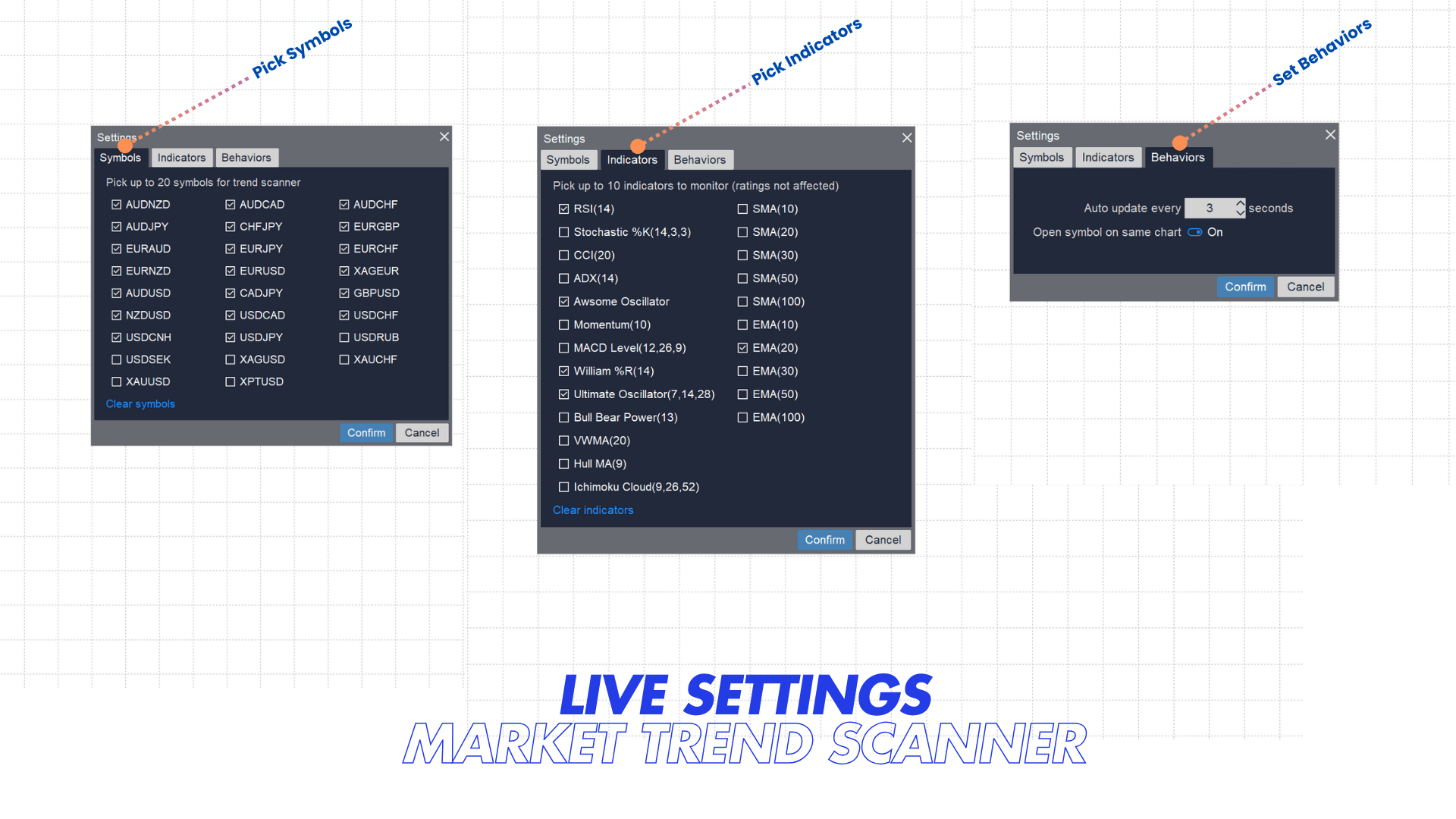
Click on the Gear icon on controls row to open Settings dialog. From here, you can setup list of monitored symbols, indicators and behaviors of dashboard. It looks like this
Symbols tab
- Symbols tab shows symbols you can pick to analyze and monitor
- All symbols you are watching (in your watch list) are supported
- You can pick up to 20 symbols to monitor in the dashboard
- The "Clear all symbols" link button allows you to clear all selected symbols
Indicators tab
- Pick indicators you want to monitor values (and component Buy/Sell suggestion)
- Up to 10 indicators allowed
- The "Clear indicators" link button allows you to clear all selected indicators
Behaviors tab
- Auto update every X seconds: Calculate and update dashboard every X seconds
- Open Symbol on same chart: Behavior applies for action when you click on the symbol on dashboard. Change symbol of current chart or open it in a new chart
6. Alert Manager
There are 2 ways to add an alert for events you care:
- Click Alert icon on the right of symbol row to add alert for that symbol
- Click Alert icon on controls bar in top to open Alert Manager dialog and add alert
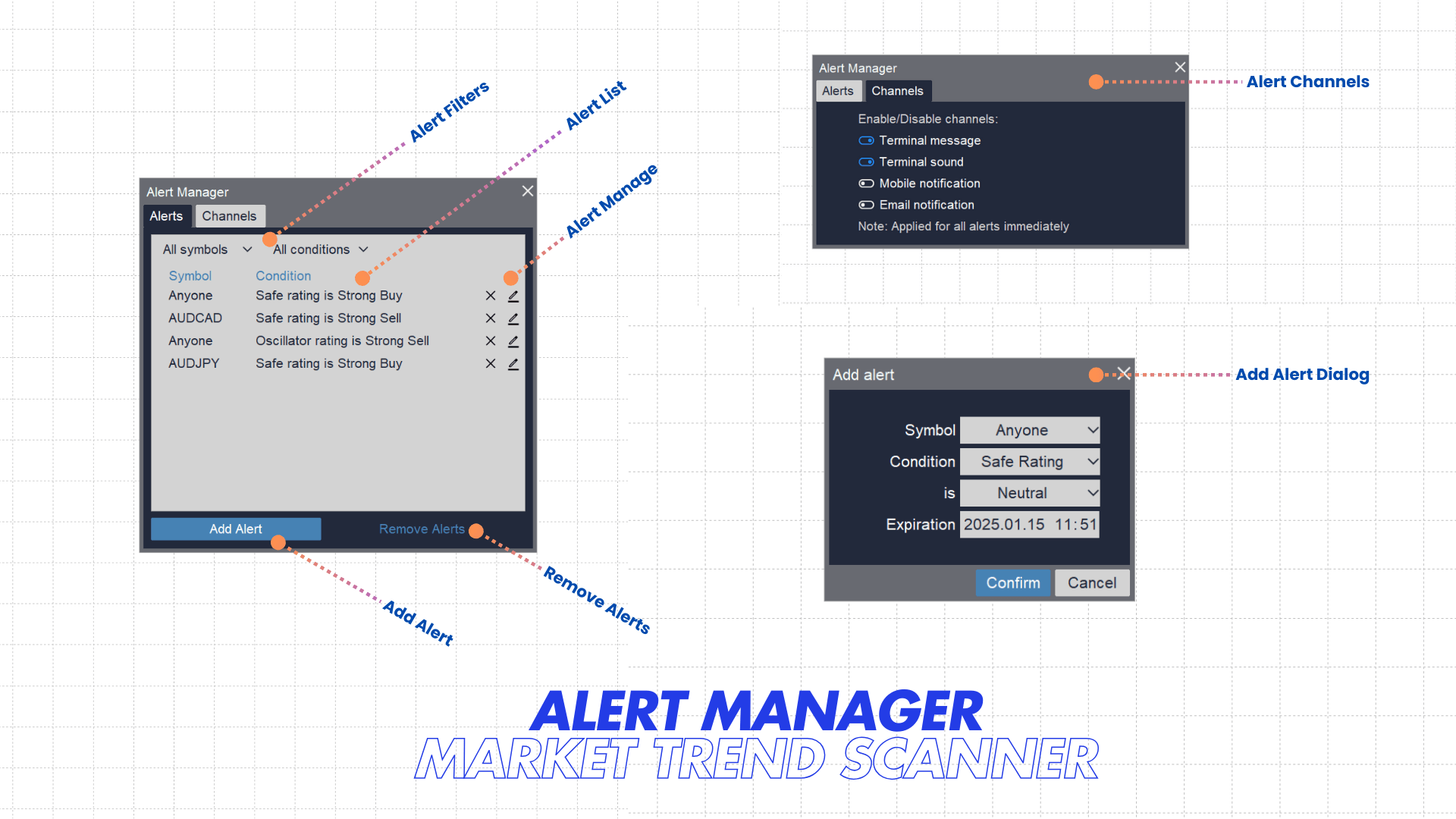
Add Alert dialog
Meaning of fields on add alert dialog as below
- Symbol: Select the symbol for alert. Alert condition will check on this symbol only. Pick "Anyone" to use alert for all symbols under monitoring
- Condition: Select condition to fire alert. Supported conditions:
- Safe Rating: Check value of Safe Rating
- OS Rating: Check value of OS Rating
- MA Rating: Check value of MA Rating
- Value: Value of condition above. Can be: Neutral, Buy, Strong Buy, Sell, Strong Sell
- Expiration: Expiration time of alert. It is trade server time. Alert expired will not shown in manager list
Alert Manager dialog
- List filters bar on top to filter alerts you created based on symbol and condition
- Active Alert list show active alerts. Expired alerts or fired alerts will be removed automatically and not shown here
- Hover each alert to see expired time and symbols that alert fired (if alert symbol is "Anyone")
- Click on Cross icon to remove alert
- Click on Pen icon to edit alert
- Click on Add Alert button to add new alert
- Click on Remove Alerts link button to remove alert shown in list (use filters to select alerts you want to remove)
- Click on Channels tab to select channels you want to receive alerts. There are 4 channels supported:
- Terminal message: A message box on MT5/MT4 terminal you are working
- Terminal sound: A sound on MT5/MT4 terminal you are working
- Mobile notification: A notification on your mobile (You need to setup you app notification. Guidelines here)
- Email notification: An email in your mailbox (You need to set up email notification. Guidelines here)
Alert Behaviors:
- Condition of alerts will be checked and fired (if matched) every second. It doesn't depend on your update interval setting
- "Anyone" option is applied for all symbols under monitoring and shown in the monitoring list. If you update list of monitored symbols, it will be applied for the new list
- When you edit alert, list of fired symbols will be reset. If you just update expiration date, it will NOT be reset
- When you Save & Load settings, alerts will be saved /loaded but fired symbols (for "Anyone" option) will not be saved/loaded
7. Miscellaneous
Save Settings
Use Save Setting feature to save your setup and alerts for further use
- Click on Save icon in controls bar to open Save dialog
- Enter name you want to use
- Click Confirm to save
- Save/Load settings
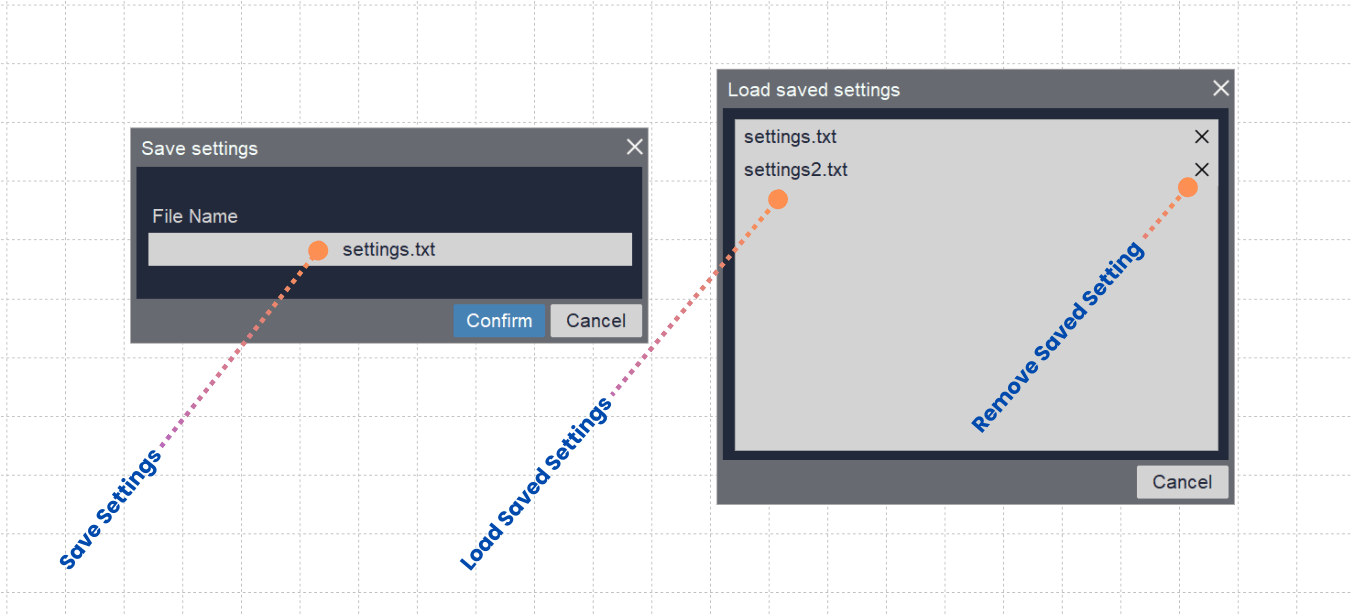
Load Saved Settings
Use Load Saved Settings feature to load setup and alerts you stored
- Click on File Open icon in controls bar to open Load dialog
- Select setting file you stored (if any)
- Click Confirm to load Note: On load settings dialog, you can click on Cross icon to remove your saved settings file
Switch Clock Mode
Click on the clock to switch between trade server time and load time If you don't know what is the current time mode, hover the clock to see the tooltip
Switch Theme Mode
Click on the Light/Dark mode icon on top-right corner (next to minimize and close icons) to switch to the theme mode you prefer.